These commands let Claude read data from services you already use - no complex setup or APIs to configure.
Google Drive
Run /drive from the Obsidian sidebar. This lets Claude browse, search, and download files from your Google Drive.
Missing the command?
Copy this into Claude:
Setup
1. Run the drive command from Claude
2. Claude will install a tool for accessing Drive
Claude will install rclone using Homebrew. If you don’t have Homebrew yet, double-click SETUP.command in your workspace folder first - it installs Homebrew and the tools these commands need.
3. Sign in with Google
Claude will open your browser. Choose your Google account and allow the permissions.
What you can ask:
- “Pull the contract templates from my Work folder”
- “Find that presentation I made about the rebrand”
- “Download everything from my 2024 Taxes folder”
- “What docs have I created in the last month?”
For safety, /drive starts with read-only access. If you want Claude to edit, upload, or delete files, just ask - it’ll walk you through upgrading.
Your Drive credentials are stored in ~/.config/rclone/rclone.conf. Don’t share this file or commit it to git.
File Conversions
Claude automatically converts Google files to formats that work better locally:
- Google Docs → downloaded as .docx, then converted to markdown
- Google Sheets → exported as CSV
- Google Slides → downloaded as .pptx
This means “grab my notes doc” ends up as a clean markdown file you can edit locally.
Multiple Accounts
Have both work and personal Google accounts? Run /drive and ask to add another account. Claude will ask what you want to name it, open your browser, and set it up. Then you can say “search my work drive for…” or “pull that file from personal drive.”
Shared Files
Files others have shared with you work too. If Claude can’t find something, mention it’s a shared file - Claude will search “Shared with me” specifically.
Calendar + Reminders (Mac only)
Run /calendar from the Obsidian sidebar. This lets Claude see your calendar and reminders - it reads from your Mac’s Calendar and Reminders apps. If you’ve added Google Calendar to your Mac, it can read that too.
/calendar uses a Mac-only tool. See Plugging In for using Rube, which can connect Claude to Google Calendar, Outlook, and other calendar services.
Missing the command?
Copy this into Claude:
Setup
1. Run the calendar command from Claude
2. Claude will install icalBuddy
Claude will install icalBuddy using Homebrew. If you don’t have Homebrew yet, double-click SETUP.command in your workspace folder first - it installs Homebrew and the tools these commands need.
3. Grant Obsidian Calendar Permissions
macOS will prompt you to grant calendar access. Click Allow.
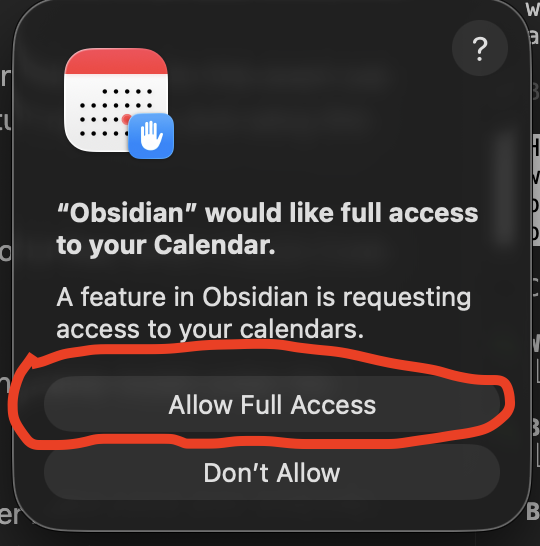
First, check that Obsidian has calendar access: go to System Settings → Privacy & Security → Calendars and make sure Obsidian is toggled on.
If it’s already on but still not working, the permission entry might be corrupted. Reset it in Terminal:
Then run /calendar again from the Obsidian Claude sidebar and click Allow when macOS prompts.
If you’re still having trouble with /calendar, you can connect directly to Google Calendar using the tool in Plugging In. This bypasses macOS permissions entirely.
What you can ask:
- “What’s on my calendar today?”
- “Am I free Thursday afternoon?”
- “What tasks are due this week?”
icalBuddy can only read - it can’t change anything.
Email (Mac only, Beta)
Run /mail from the Obsidian sidebar. This lets Claude read email from your Mac’s Mail app - works with any provider you’ve configured (iCloud, Gmail, Exchange, self-hosted IMAP, etc).
/mail uses Mac-only AppleScript. See Plugging In for using Rube, which can connect Claude to Gmail, Outlook, and other email services.
Missing the command?
Copy this into Claude:
Setup
1. Run the mail command from Claude
2. Grant Automation permission
macOS will prompt you to let Obsidian control Mail. Click Allow.
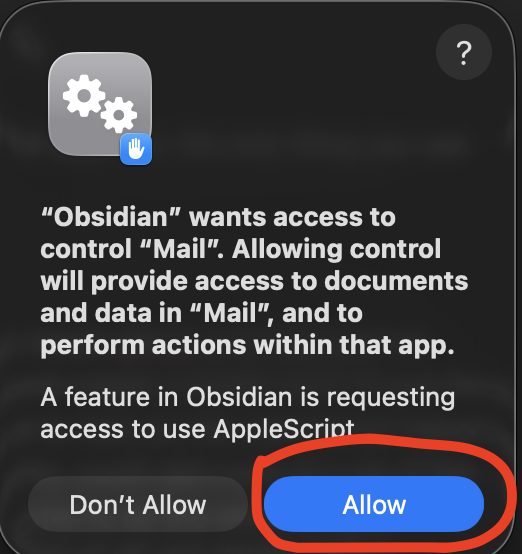
If you miss the prompt, go to System Settings → Privacy & Security → Automation and enable Obsidian to control Mail.
What you can ask:
- “Check my email”
- “Any emails from Sarah?”
- “Find emails about the proposal”
- “What came in today?”
For safety, /mail starts read-only. If you want to compose emails, ask Claude to enable compose mode - it opens a draft in Mail.app for you to review before sending.
Your inbox likely contains 2FA codes, password resets, and financial notifications — be cautious with autonomous scripts that read email.
If you use Gmail and want faster search with full Gmail operators, check out the Gmail MCP tool in Plugging In. /mail works fine with Gmail too - it just uses the local Mail.app cache.
Meeting Notes (Granola)
If you use Granola for meeting notes, you can sync them into your workspace and let Claude search them.
Setup:
- Install the Granola Sync plugin: obsidian-granola-sync
- Meeting notes will sync to a folder in your workspace
- Run
/meetingto search them

Missing the command?
Copy this into Claude:
Granola syncs via an Obsidian plugin. There are hundreds of others - Kindle highlights, Readwise, Google Tasks.
Messages
Run /messages from the Obsidian sidebar. This lets Claude read your messages across iMessage, WhatsApp, Telegram, Signal, Instagram, LinkedIn, Discord, Slack via Beeper. Works on Mac, Windows, and Linux.
Missing the command?
Copy this into Claude:
Setup
1. Install Beeper Desktop
Download from beeper.com and connect your chat accounts.
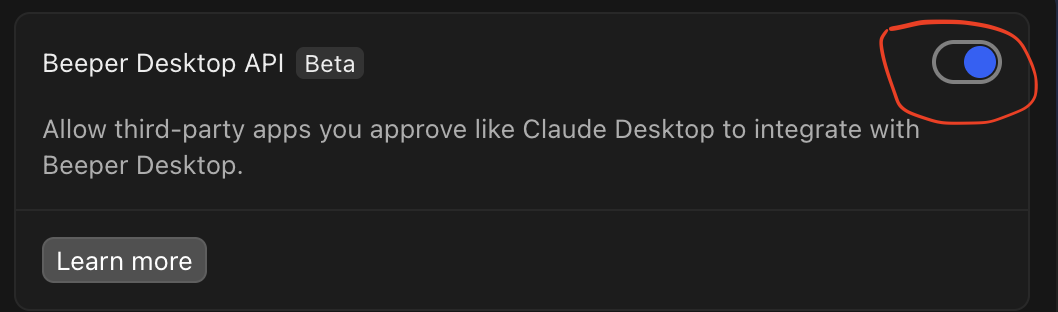
2. Enable the API
In Beeper Desktop: Settings → Developers → toggle ON “Beeper Desktop API”.
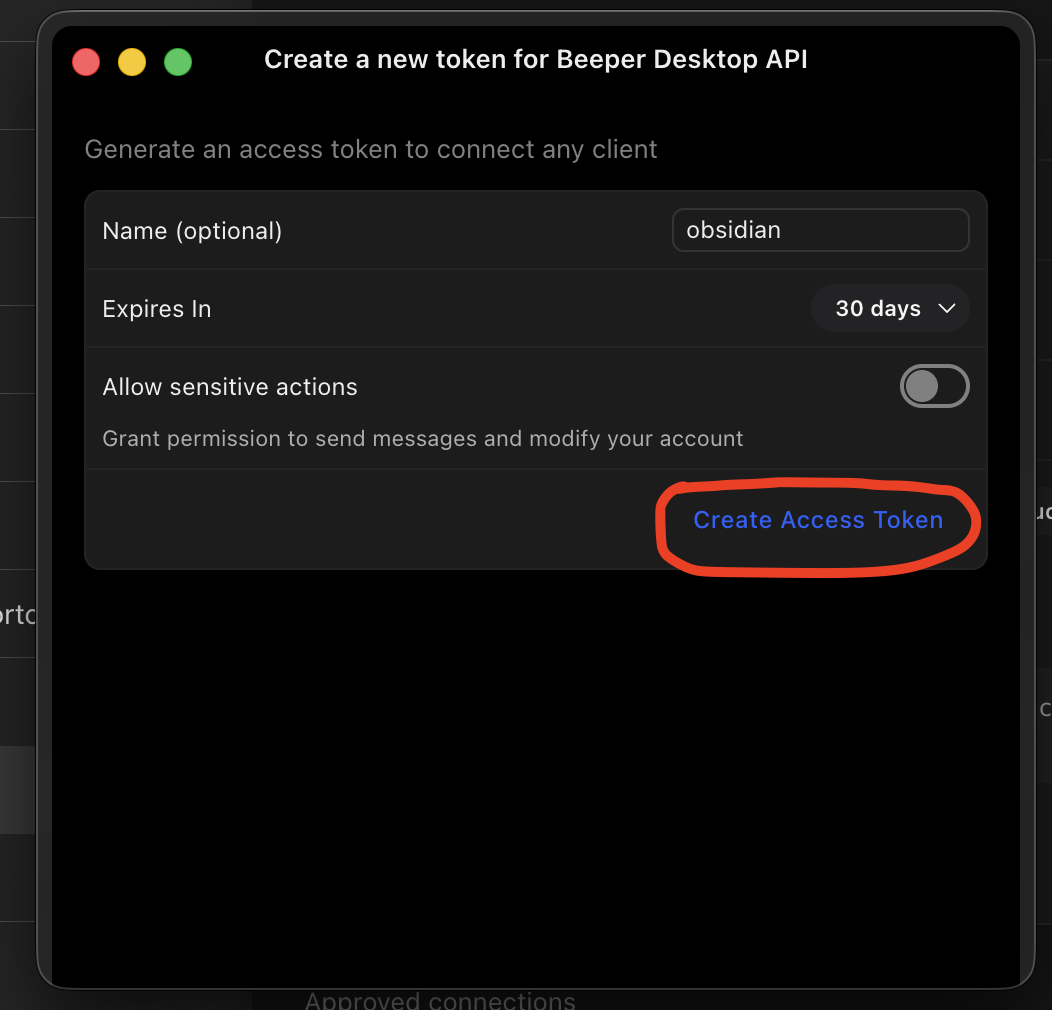
3. Create a token
Scroll down to Approved connections and click the + button.
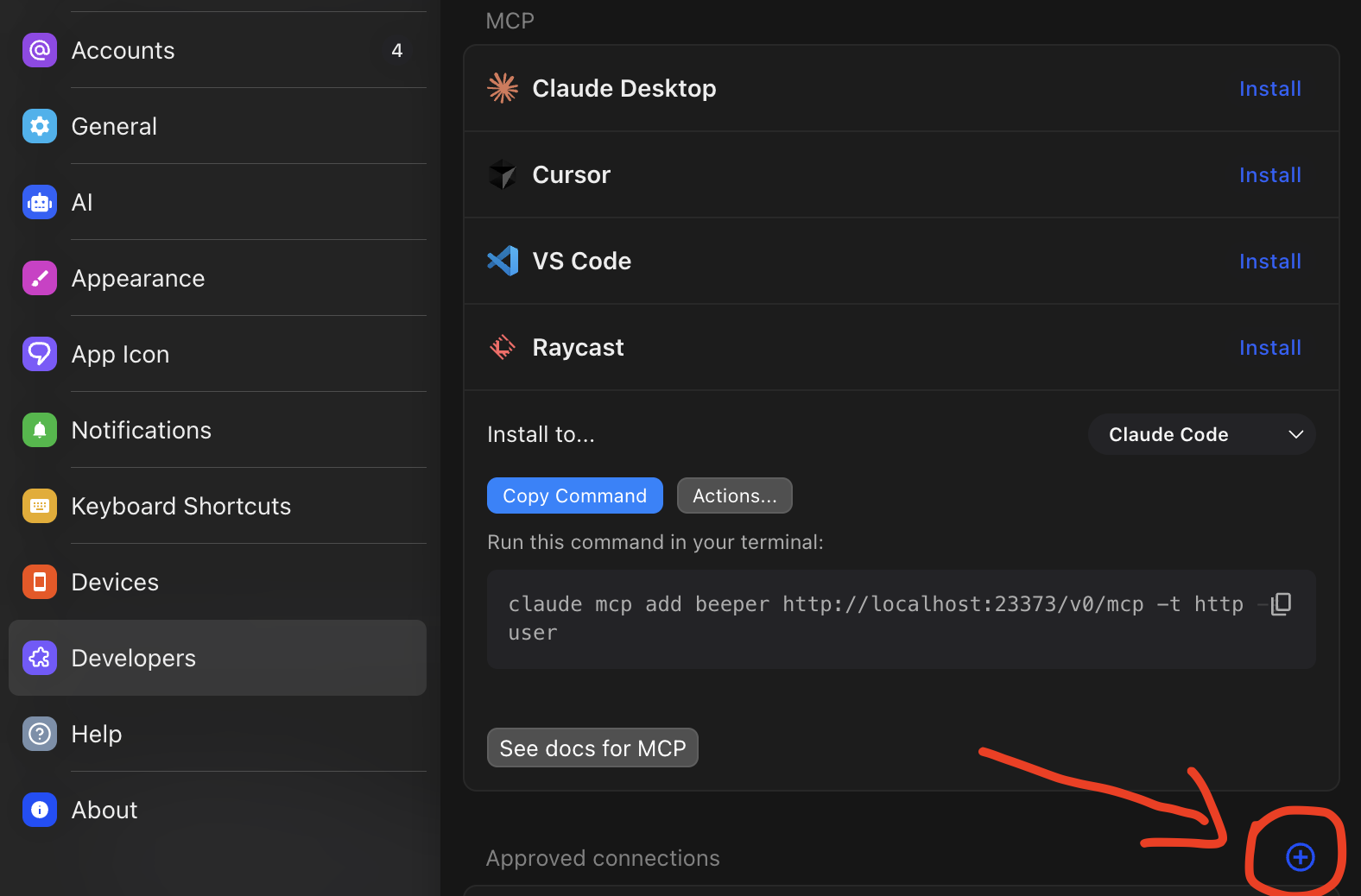
Name it something like “obsidian” and click Create Access Token.
4. Run the command
Claude will ask for the token - paste it in and you’re set.
What you can ask:
- “Check my messages”
- “What do I need to respond to?”
- “Any messages from Sarah?”
- “Who’s messaged me this week?”
- “Find where John and I talked about the project”
For safety, /messages starts read-only. If you want to send, just ask - Claude will walk you through enabling it.
Your Beeper token gives access to all connected chat platforms. Don’t commit it to Git or share it.
If you have SMS relay enabled on your Mac, iMessage conversations include your 2FA codes — agents reading your messages can see them.
Going Further
Want to access hundreds of apps at once - Gmail, Slack, Notion, and more? See Plugging In.