Before You Start
External tools (MCPs) give Claude access to real accounts. This is powerful but risky — only grant access Claude needs.
Three rules:
- Start read-only — Enable view-only permissions first. Add write access once you trust the workflow.
- Stay in approval mode — Claude asks before acting. Skip approvals (Shift-Tab) only when you’re confident.
- Expect bugs — MCPs can be flaky: auth expires, wrong tools get called, connections drop. Test on low-stakes tasks first.
I pull data into local files whenever possible. It’s faster, more reliable, and Claude works better with text than APIs.
What’s Possible






Setting Up Rube (the gateway to your apps)
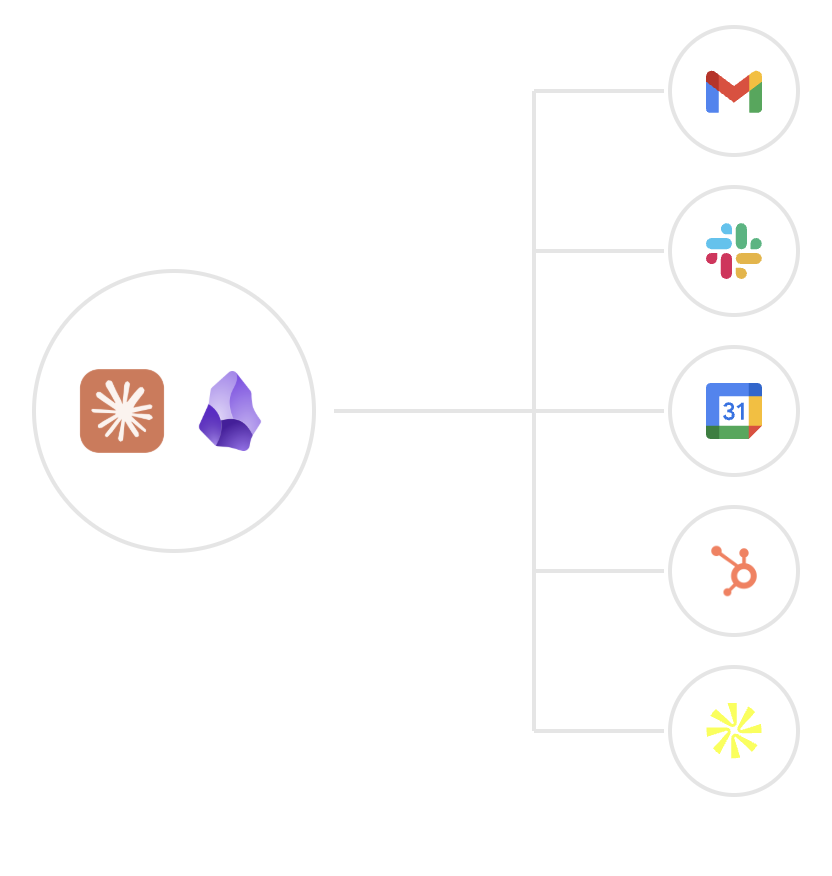
Rube allows you to hook into 500+ apps from Claude Code.
Installation
-
Go to https://rube.app and click “Get Started”
-
Authenticate with email/Google
-
Copy setup command and run in terminal:
-
In Claude Code run
/mcp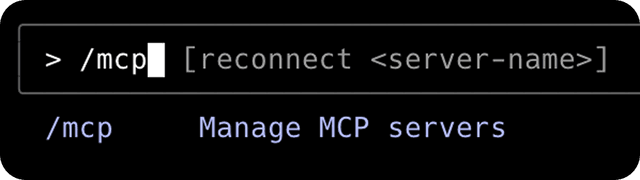
-
Select Rube and press enter

-
In Rube MCP Server, Select Authenticate and press enter
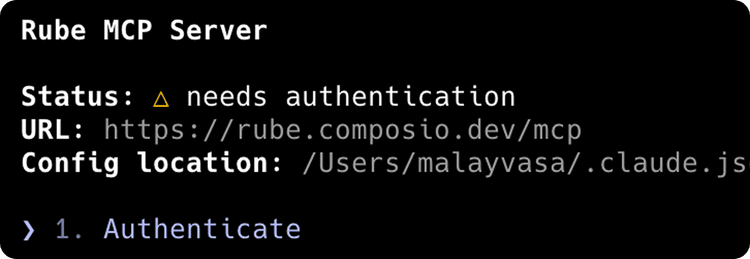
- Complete authentication in the browser window that opens

- Once connected, go back to the Rube dashboard

Adding Apps Safely
- Go to Apps -> Marketplace
- Search for apps you want to enable
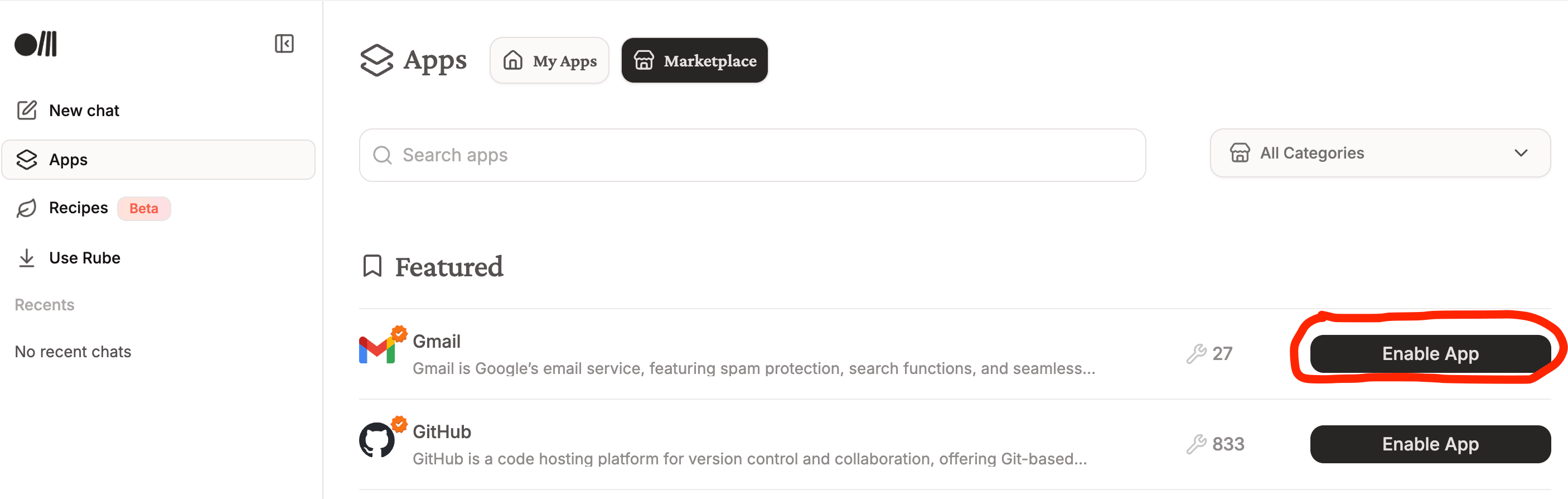
Example: Gmail
Click Recommended option (Composio)
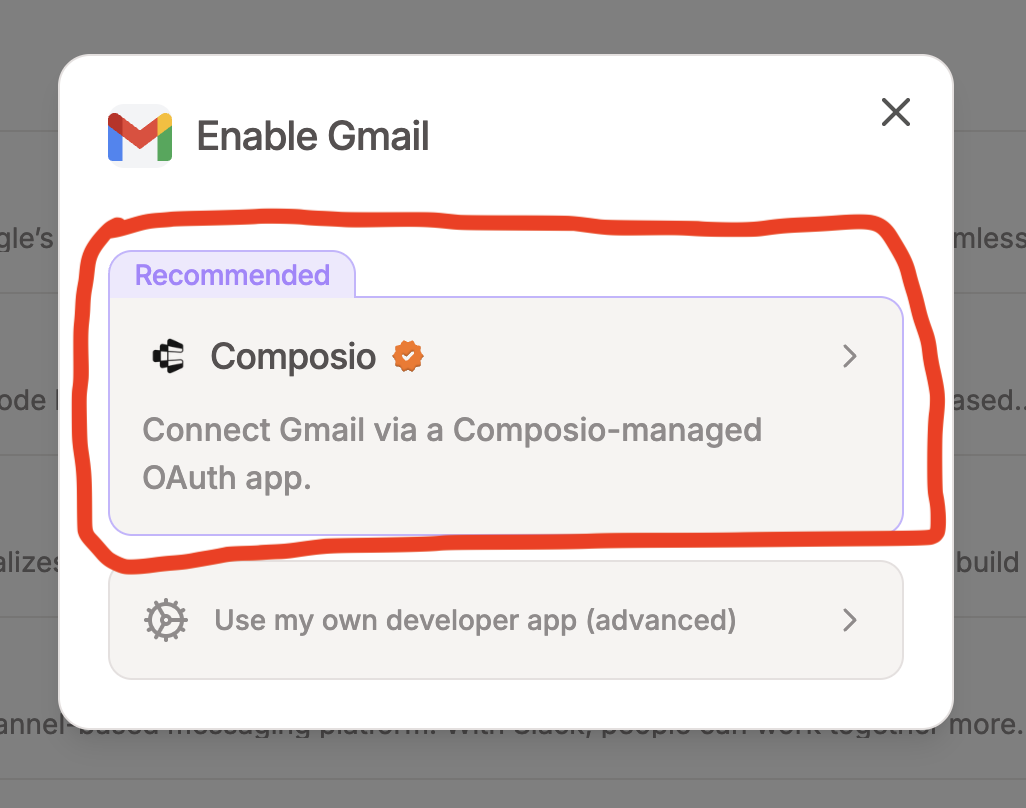
Enable Scopes (I left all of these on, as we’ll be able to limit what the agent can do later)
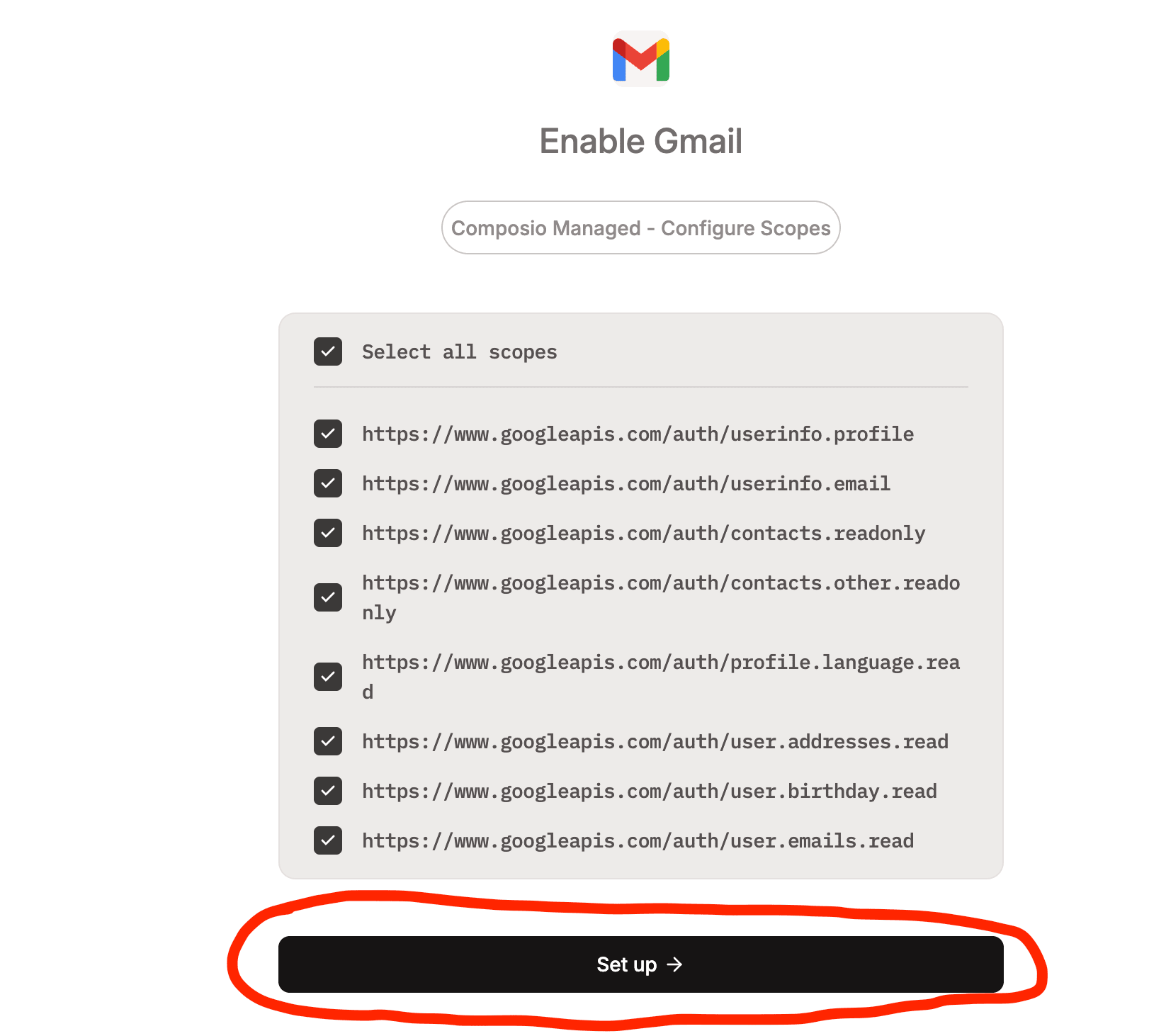
Approve Scopes
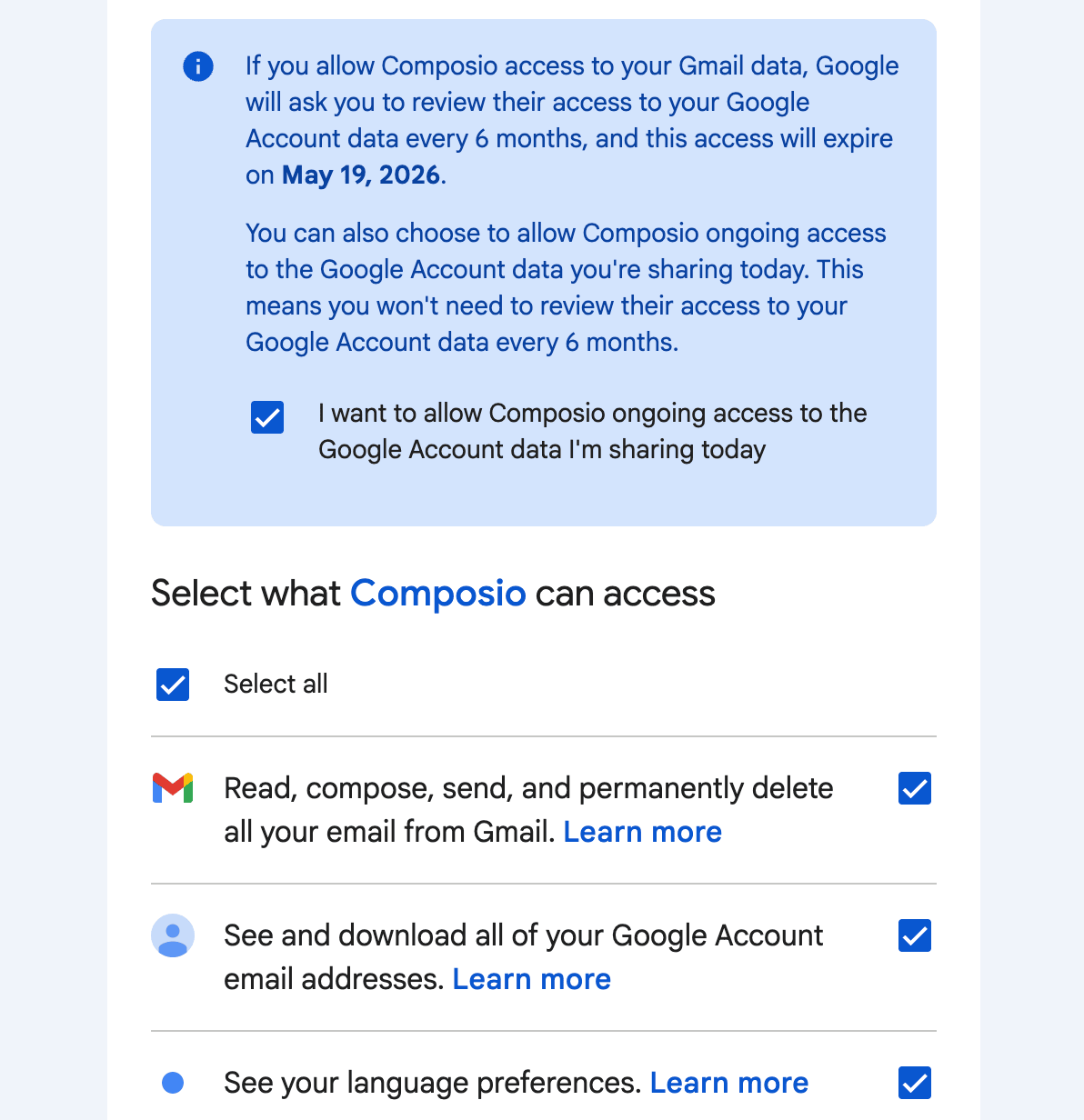
CRUCIAL STEP: LIMIT TOOLS AVAILABLE TO THE AGENT
Click Modify Tools
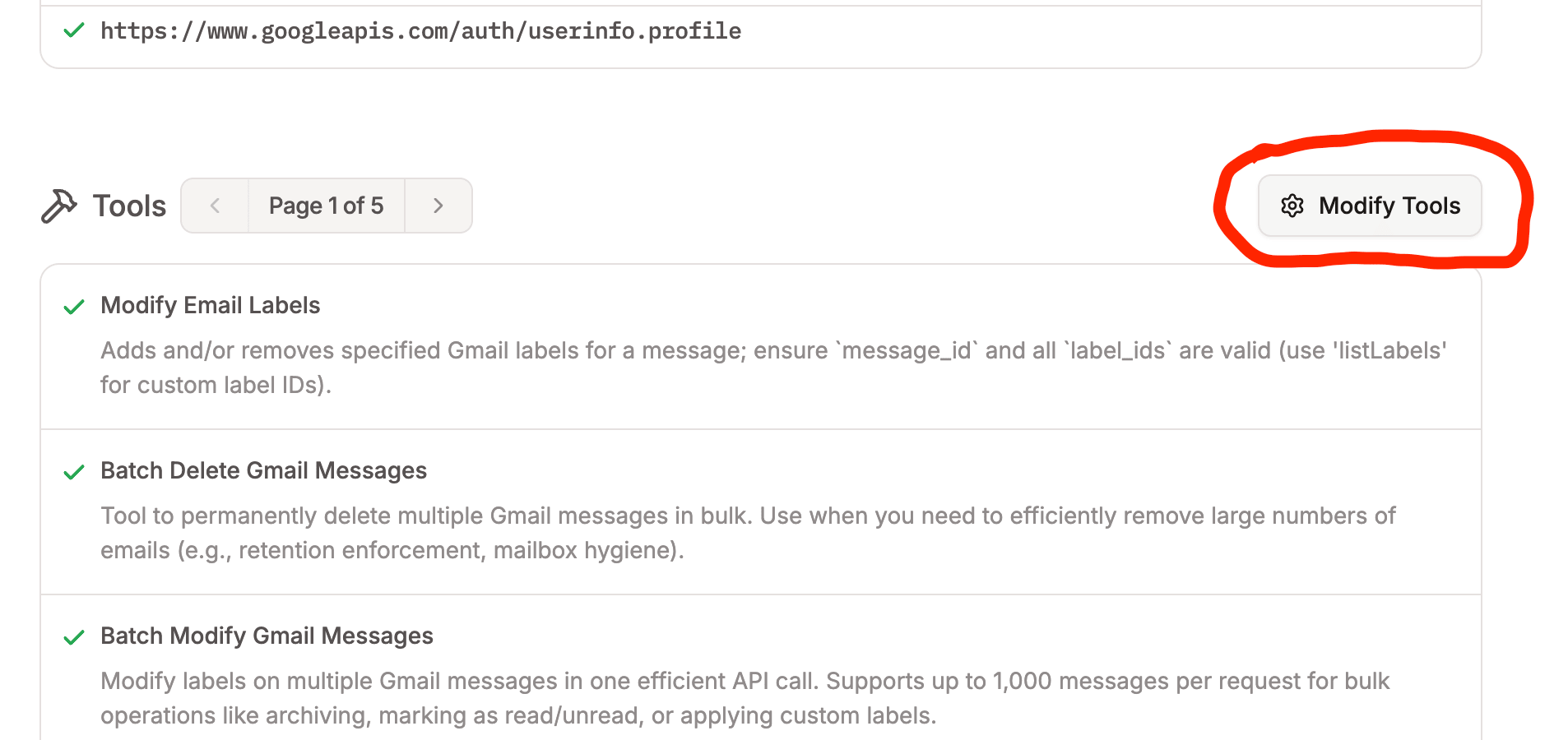
(I encourage clicking All Tools off, and then only allowing View Only. If you want Claude to create drafts or send emails later, you can turn those permissions on.)
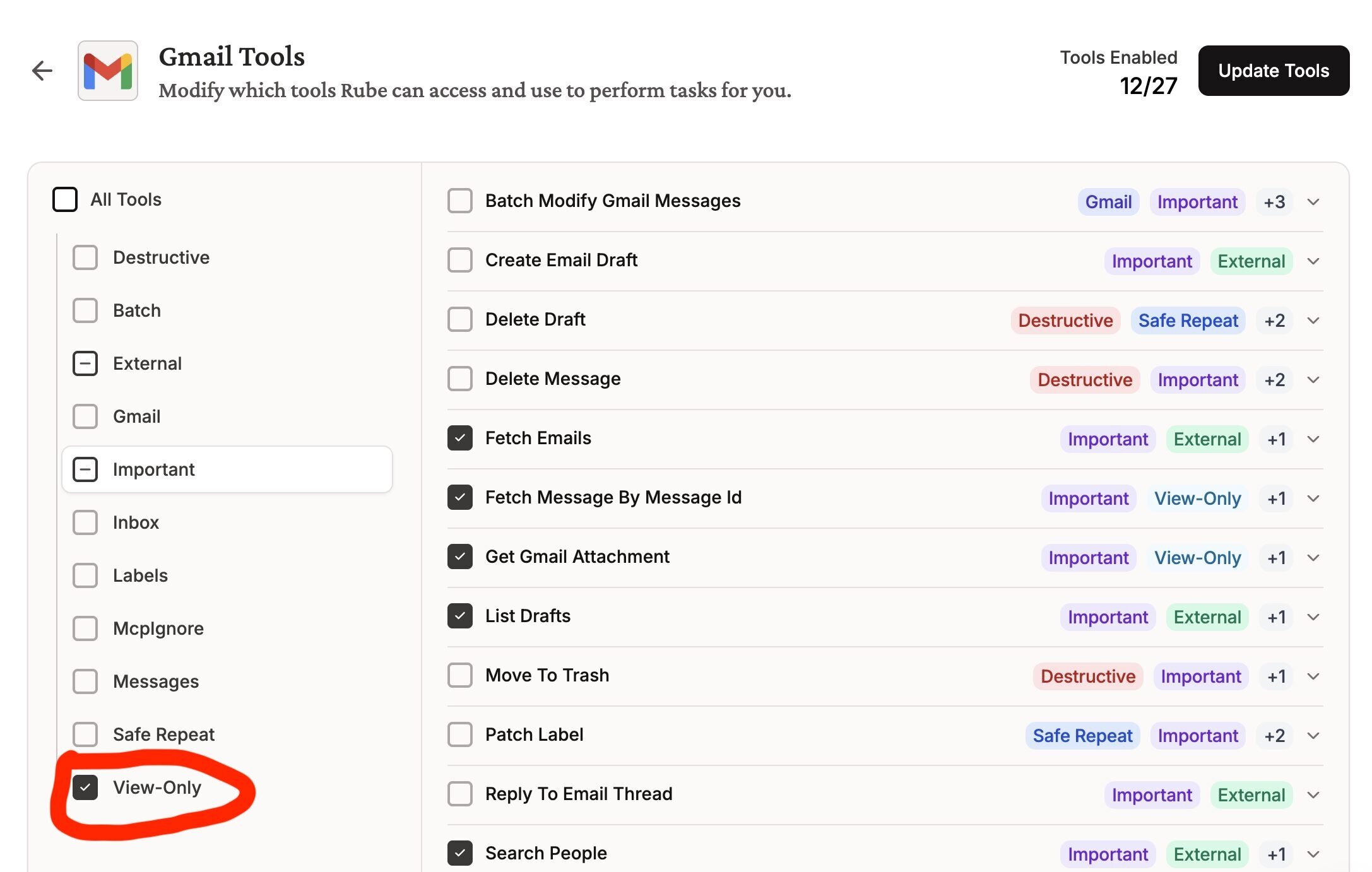 Click Update Tools in top right corner
From Claude Code, ask
Can you summarize key emails in my inbox
Press enter to proceed, or tab down to 2 and press enter
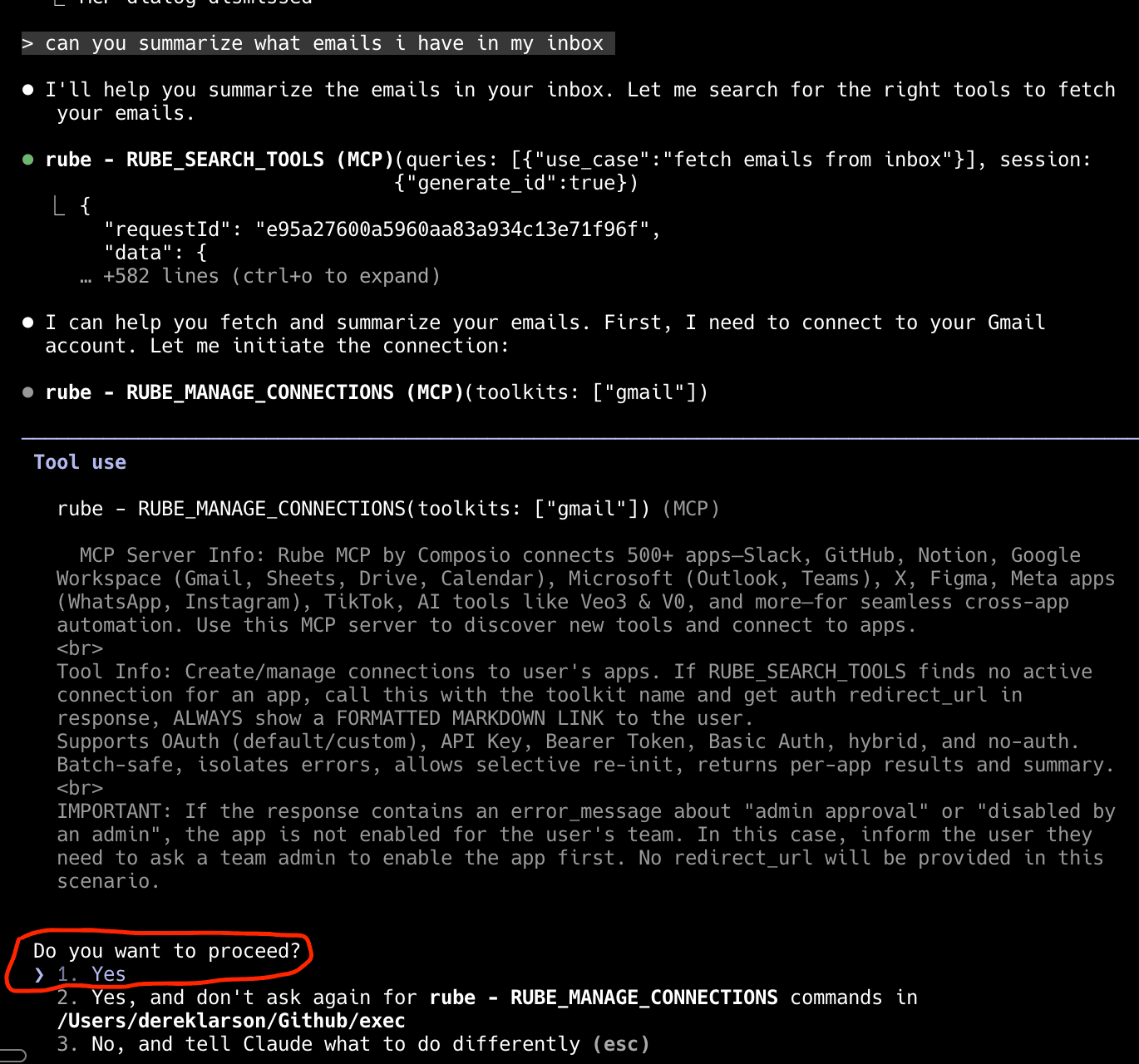 (you may need to start a fresh session or else reauthenticate)

Context Management & Costs
The instructions for the tools you give Claude (via MCPs) gets “read” by Claude at the start of every conversation. This has two downsides:
- Security: Claude “knows” about all your connected apps, even when you don’t want it to use that tool.
- Cost/Speed: It fills up the context window, making Claude slower, more confused, and more expensive.
Best Practice:
Run /context to see what Claude is carrying around. If you aren’t using a tool for a specific task, disable it. Treat MCPs like heavy machinery—turn them on only when you need to use them.
Managing Context and Spend
Token Efficiency
Use /context to see how much junk you’re carrying around. MCPs take up a lot of tokens in every conversation.
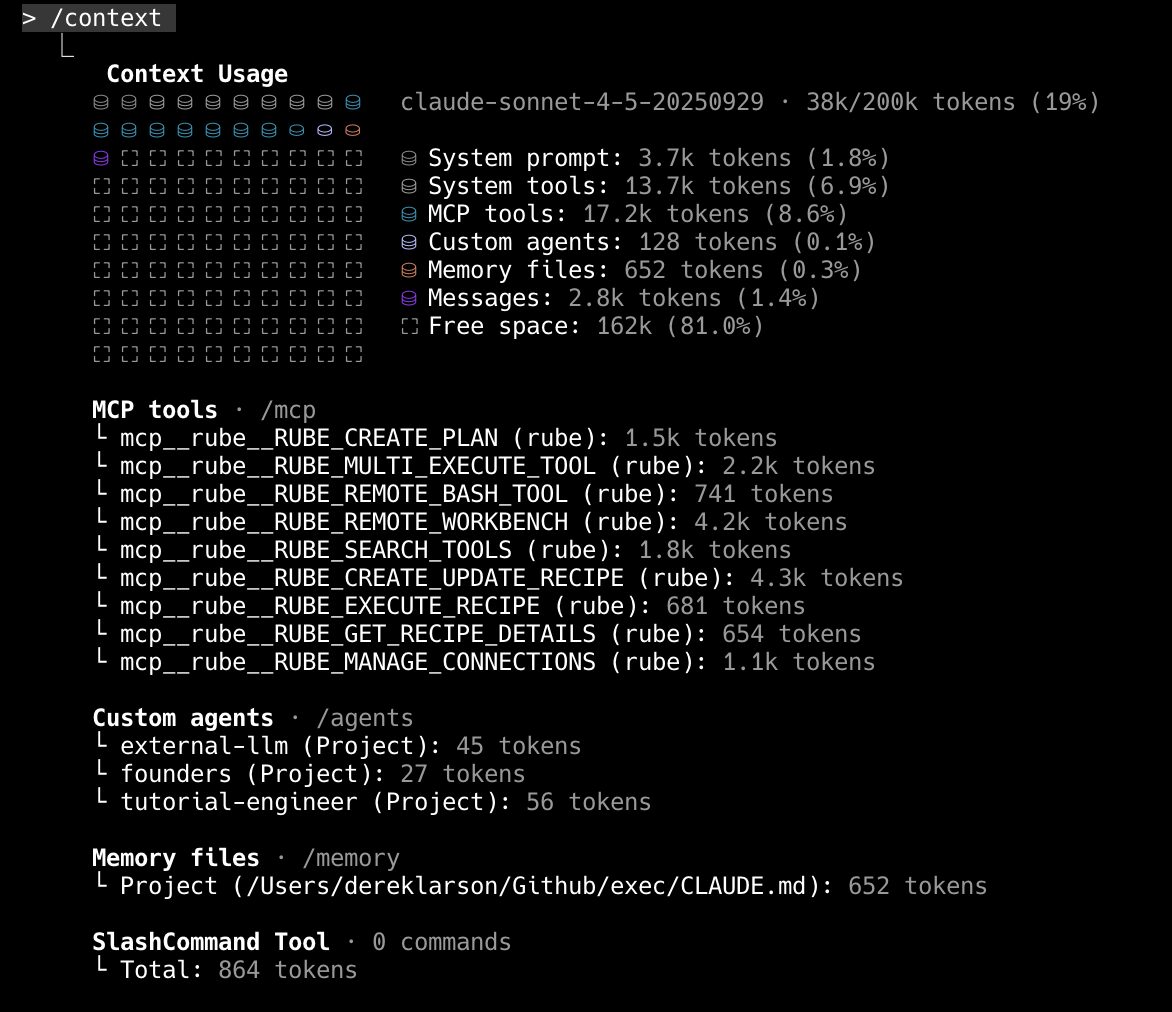
Checkpoint
Integration:
- Rube installed and authenticated
- Understand read-only vs destructive permissions
- Connected 1-2 services
- Know how to check context with
/context
Understanding:
- Understand MCP security implications
- Managing token usage