You’re on a walk, and have a great idea, but by the time you figure out where to put it, it’s gone.
In the first day I set up voice input in Obsidian, I captured 3,000 words across 35 voice notes.
Claude moved each idea or task into the right file.
How It Works
Step 1: Capture — Tap the shortcut, speak your thought, done.
 →
→ →
→
Step 2: Claude Organizes — Run /voice-router when you’re back at your desk. Claude routes each note to the right file.
2x speed
Mobile Capture (iPhone)
Voice notes save directly to voice.md in Obsidian. When you run /voice-router, Claude reads them and routes each thought to the right place.
Voice to Obsidian — click the link on your phone, tap “Add Shortcut”
This shortcut uses Transcribe Audio, which stops recording if the screen turns off. If that happens, try this alternate shortcut which uses Dictate Text instead — it won’t break on screen lock, but it cuts off if you pause too long. For longer recordings, use Voice Memos (see below).
Open Obsidian on your phone first to make sure your latest notes sync. Then run /voice-router from your computer.
Then pick how you want to trigger it:
Action Button (iPhone 15 Pro+):
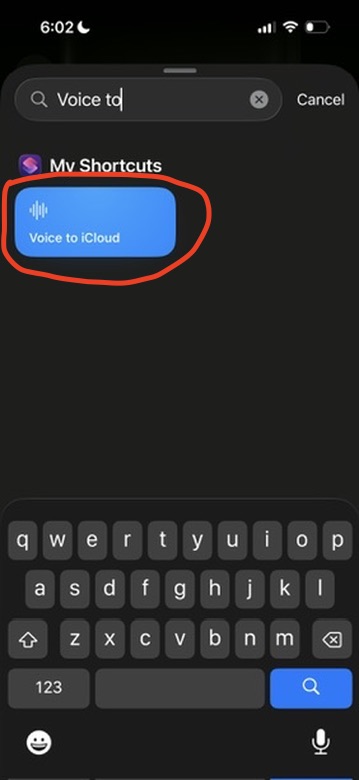
Settings → Action Button → Swipe to “Shortcut” → Tap to select your voice shortcut
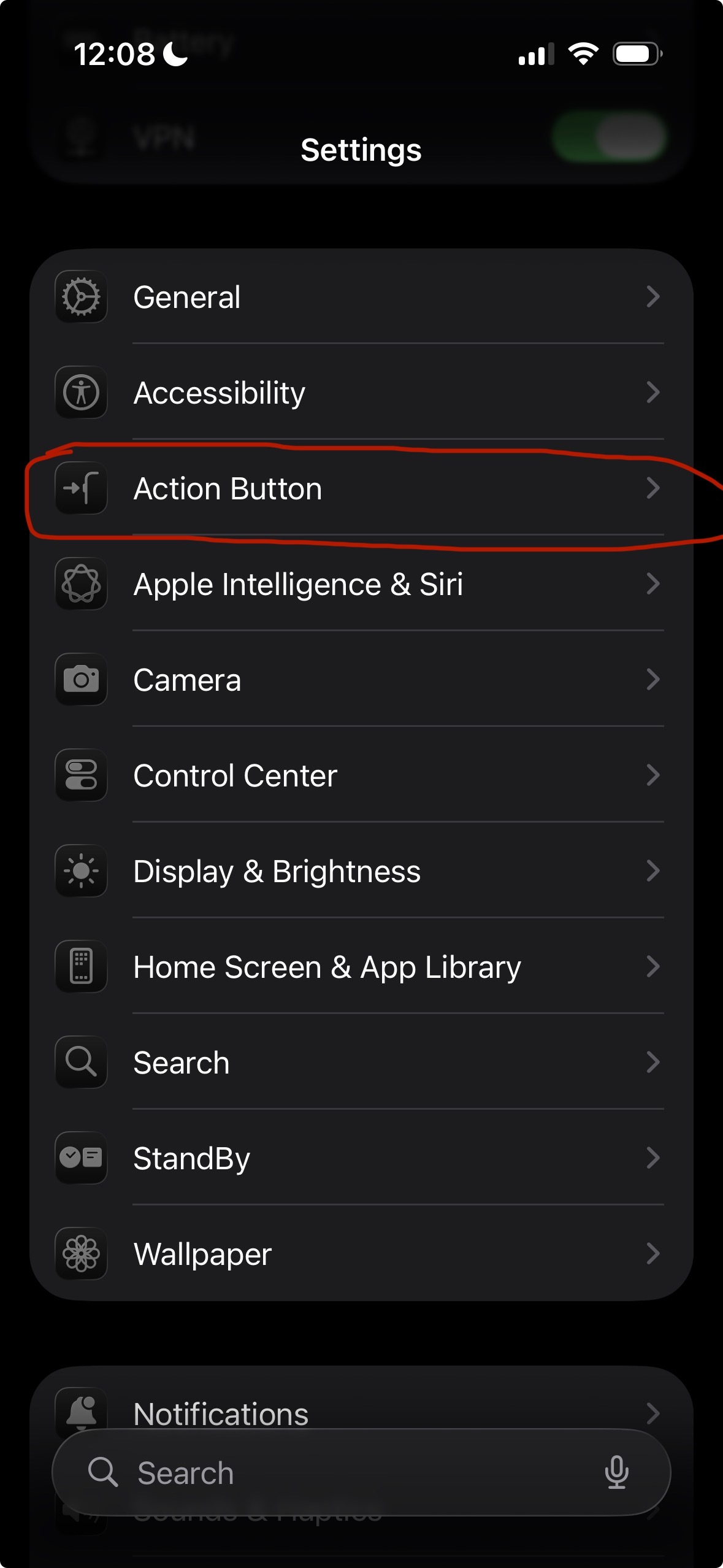 →
→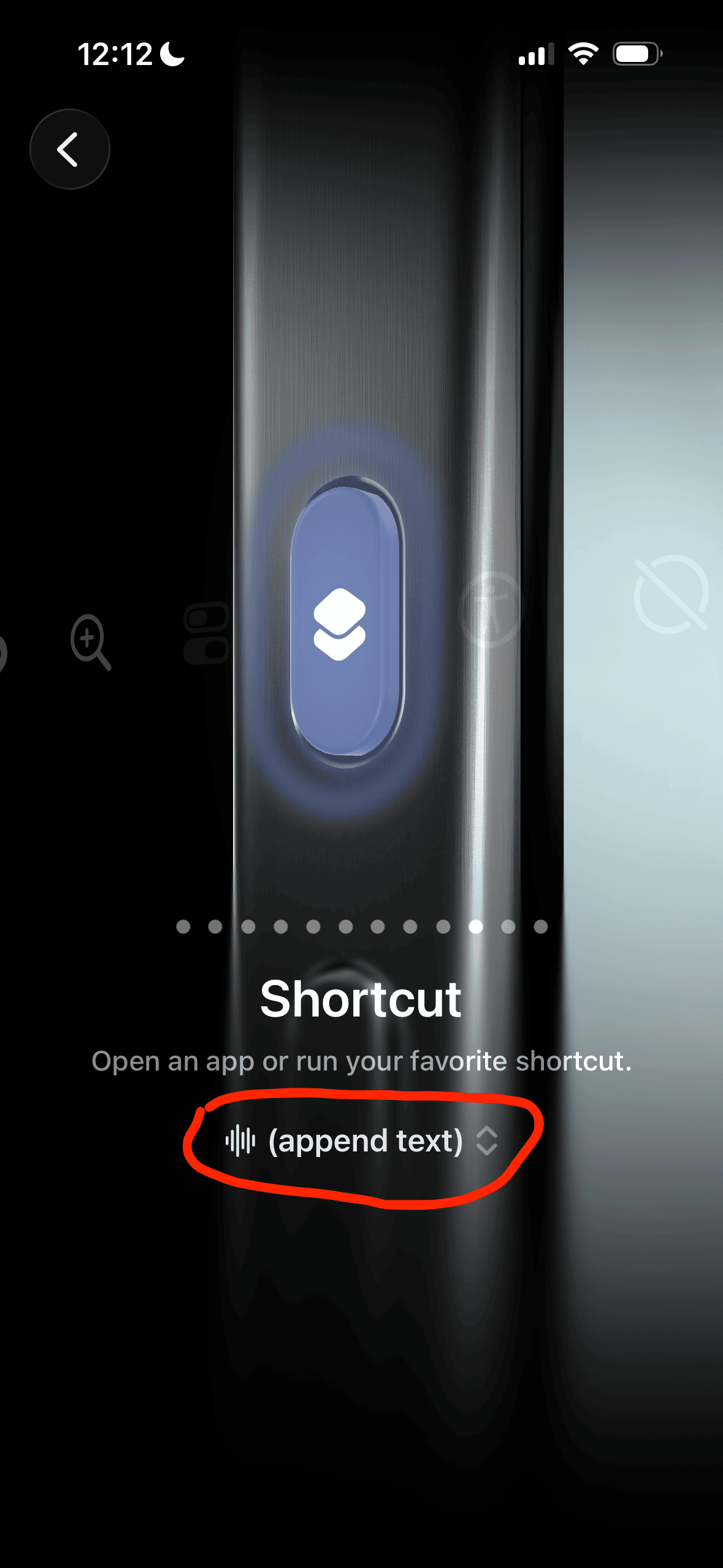 →
→
Lock Screen Button (any iPhone):
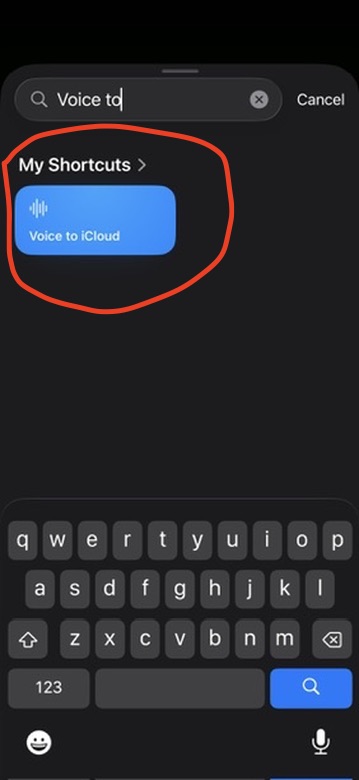
Hold lock screen → Customize → Add Widgets → Tap shortcut widget twice → Search for your voice shortcut
 →
→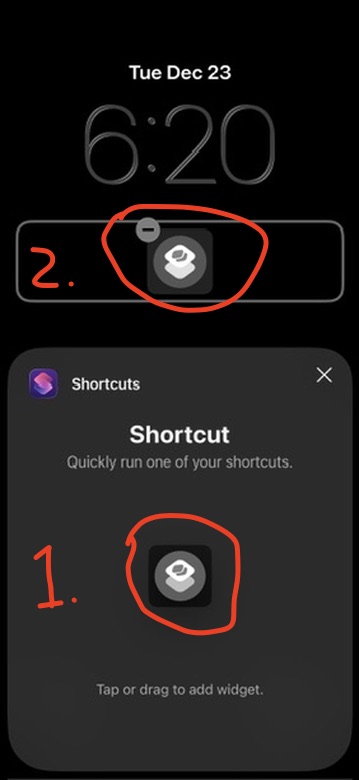 →
→
You can also record with the Voice Memos app. This is the better option for longer thoughts or when you want to pause and think mid-recording. Run /setup-transcription on your Mac to set up transcription.
Want one-tap recording? Add this shortcut to your phone and assign it to your Action Button or Lock Screen.
Android
Open voice.md in Obsidian mobile, tap the microphone on Gboard, speak.
Desktop Input
On your computer, add notes directly to voice.md in Obsidian.
Dictate: Press Fn twice (Mac) or Windows + H (Windows), speak, press again to stop.
Type: Just open voice.md and type. Meeting notes, quick thoughts, whatever - same format, same processing.
I use Whispr Flow on desktop - works on Mac, Windows, Linux.
Processing: Watch Claude Route Your Thoughts
Back at your computer, run:
Example input:
What Claude does:
- Newsletter idea →
maybe.md(future ideas) - “Text Jake” →
tasks.md - Landing page updates → 2 tasks in
tasks.md - Entries archived to
archive/voice-archive.md
Check Your Setup
Your starter kit includes the voice system. Verify:
In Obsidian: Look for voice.md at the root of your workspace.
In Claude Code: Type /voice-router and hit enter. If it runs, you’re good.
For Voice Memos users: Also run /setup-transcription once to set up transcription.
For /voice-router:
For /setup-transcription:
Advanced: /setup-transcription can set up automatic transcription every hour, and optional auto-routing — Claude runs /voice-router on a schedule so your notes organize themselves. If you run into issues, reach out.
Try It
Capture a voice note about whatever’s on your mind. Run /voice-router from your computer, and see how Claude routes the thoughts.