You’re on a walk, and have a great idea, but by the time you figure out where to put it, it’s gone.
In the first day I set up voice input in Obsidian, I captured 3,000 words across 35 voice notes.
Claude moved each idea or task into the right file.
How It Works
- Capture - Record a voice note from your phone or computer.
- Transcribe - Your recording becomes text (on-device or in the app).
- Claude Organizes - Run a command. Claude reads your notes and routes each thought to the right file.
2x speed
Option A: Dispatch (Recommended)
Based on feedback from our first cohort, we built an app for this. Tap to record, it handles transcription, and your transcripts are ready for Claude to process.
Android: Download Dispatch on Google Play
iPhone: Download Dispatch on the App Store
Mac: Install the Dispatch shortcut. Shows up in Spotlight or Raycast. Type “dispatch” and start recording.
See the Dispatch setup guide for full details on transcription settings and Google Drive sync.
Getting transcripts to Claude
Two ways to connect Dispatch to your workspace:
Option 1: Dispatch plugin (recommended). Claude reads your transcripts directly from Google Drive or a local folder. No intermediate files.
- Add the plugin marketplace:
- Install the Dispatch plugin:
Then run /dispatch:route to have Claude route items to the right files, or /dispatch:work to have Claude work through your backlog directly.
Option 2: Pull into voice.md. If you prefer everything going through voice.md (same flow as the shortcut below), run /setup-transcription. It sets up rclone to sync from Google Drive and can schedule automatic transcription and routing in the background.
Dispatch works with Co-Work. Your transcripts land in Google Drive, and Co-Work reads them through the Drive connector. Run /dispatch:route the same way.
Option B: Direct to voice.md
If you don’t want another app, you can get voice notes straight into your workspace. Text lands in voice.md, then you run /voice-router to have Claude organize it.
iPhone
Voice to Obsidian - click the link on your phone, tap “Add Shortcut”
This shortcut uses Transcribe Audio, which stops recording if the screen turns off. Try this alternate shortcut if that happens. For longer recordings, use Dispatch.
Then pick how you want to trigger it:
Action Button (iPhone 15 Pro+):
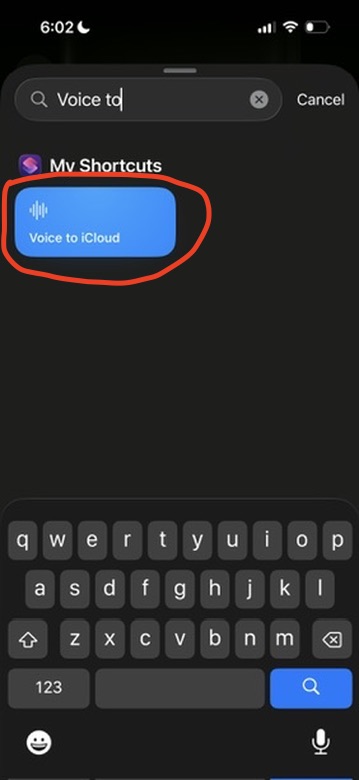
Settings > Action Button > Swipe to “Shortcut” > Tap to select your voice shortcut
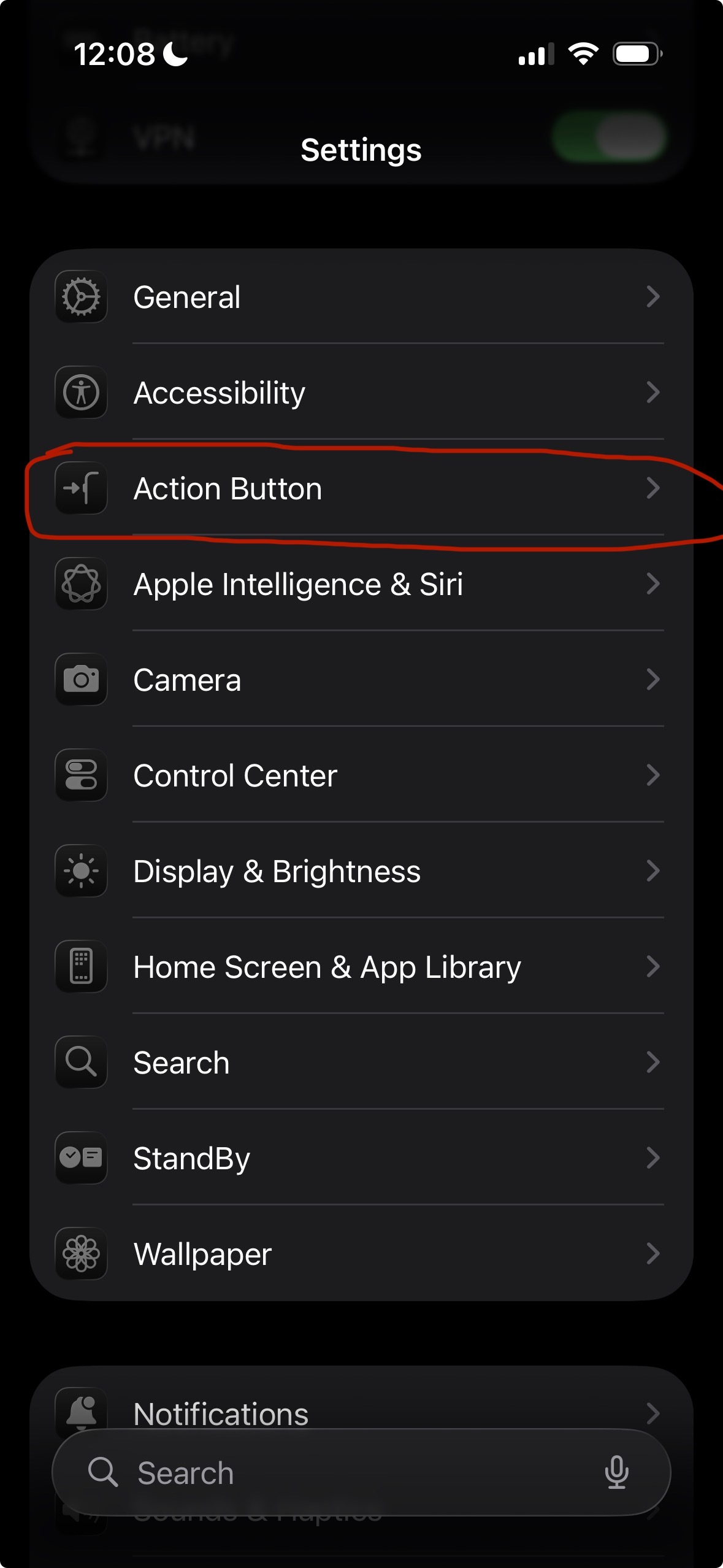 →
→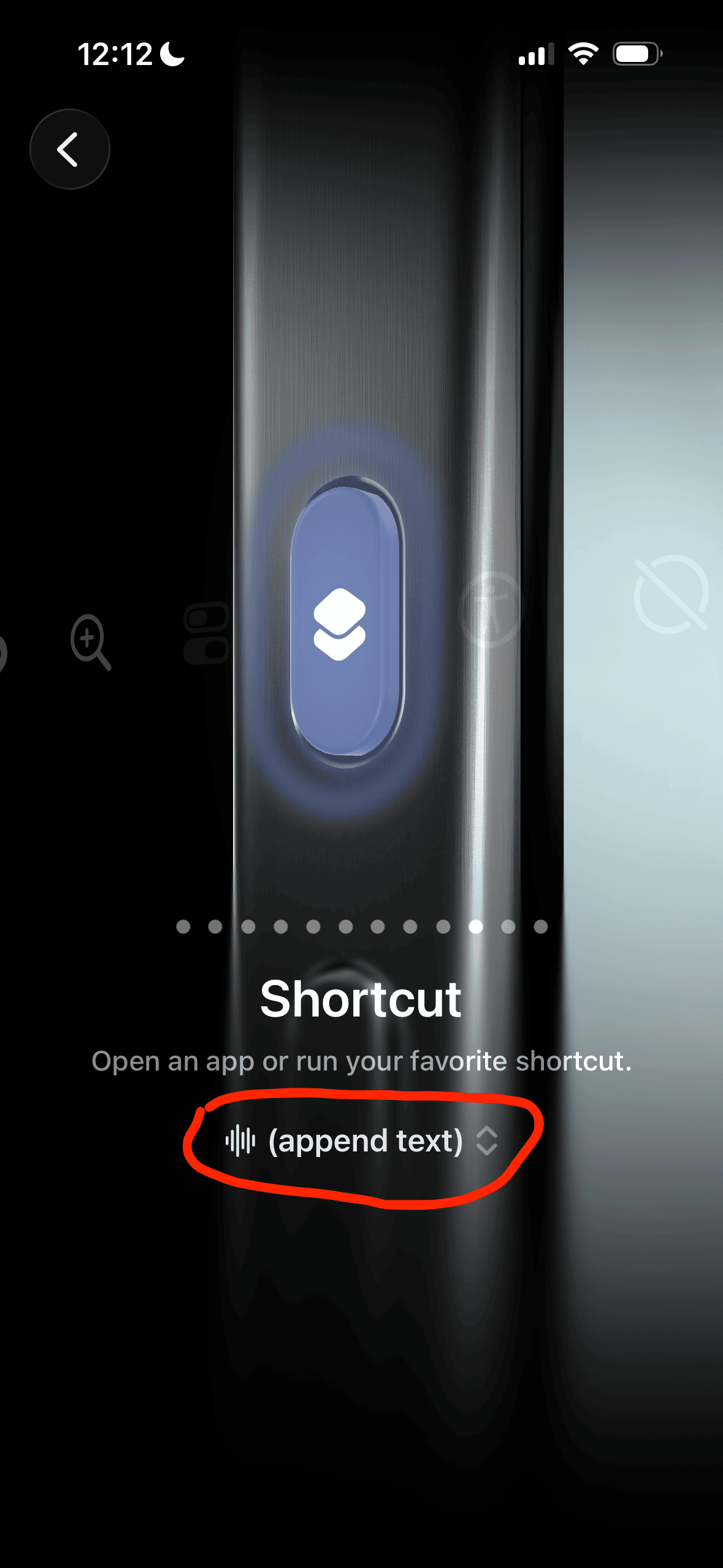 →
→
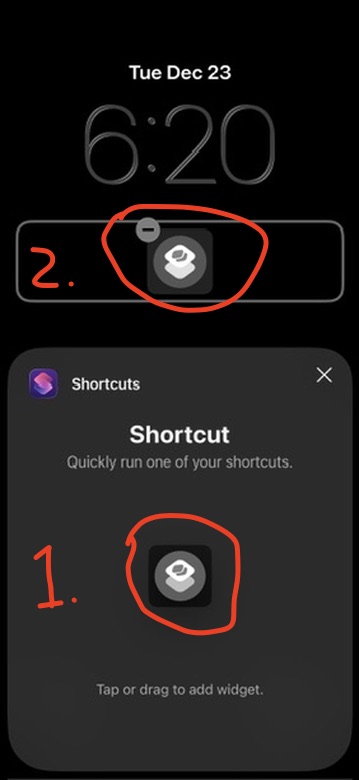
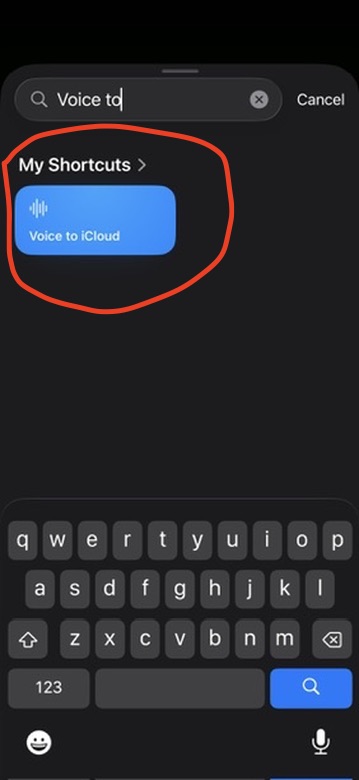
Lock Screen Button (any iPhone):
Hold lock screen > Customize > Add Widgets > Tap shortcut widget twice > Search for your voice shortcut
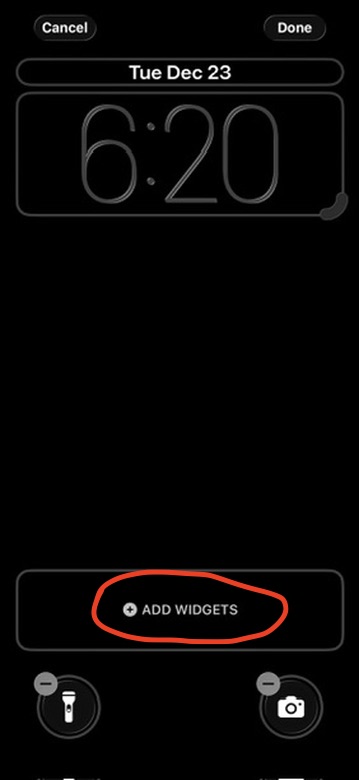 →
→ →
→
Open Obsidian on your phone first to make sure your latest notes sync. Then run /voice-router from your computer.
Desktop
Add notes directly to voice.md in Obsidian.
Dictate: Press Fn twice (Mac) or Windows + H (Windows), speak, press again to stop.
Type: Just open voice.md and type. Meeting notes, quick thoughts, whatever.
Processing
Back at your computer, run:
Example input:
What Claude does:
- Newsletter idea >
maybe.md(future ideas) - “Text Jake” >
tasks.md - Landing page updates > 2 tasks in
tasks.md - Entries archived to
archive/voice-archive.md
Try It
Capture a voice note about whatever’s on your mind. Run the routing command and see how Claude sorts your thoughts.